Barcode scanning transforms how businesses manage inventory, track assets, and streamline operations. When integrated with FileMaker platforms, barcode technology becomes a powerful tool that connects physical items with digital workflows in real time. Whether you're managing warehouse operations, retail inventory, or manufacturing processes, implementing filemaker barcode scanning capabilities can dramatically reduce data entry errors while accelerating transaction speeds across your organization.
Why FileMaker Barcode Scanning Matters for Custom Business Solutions
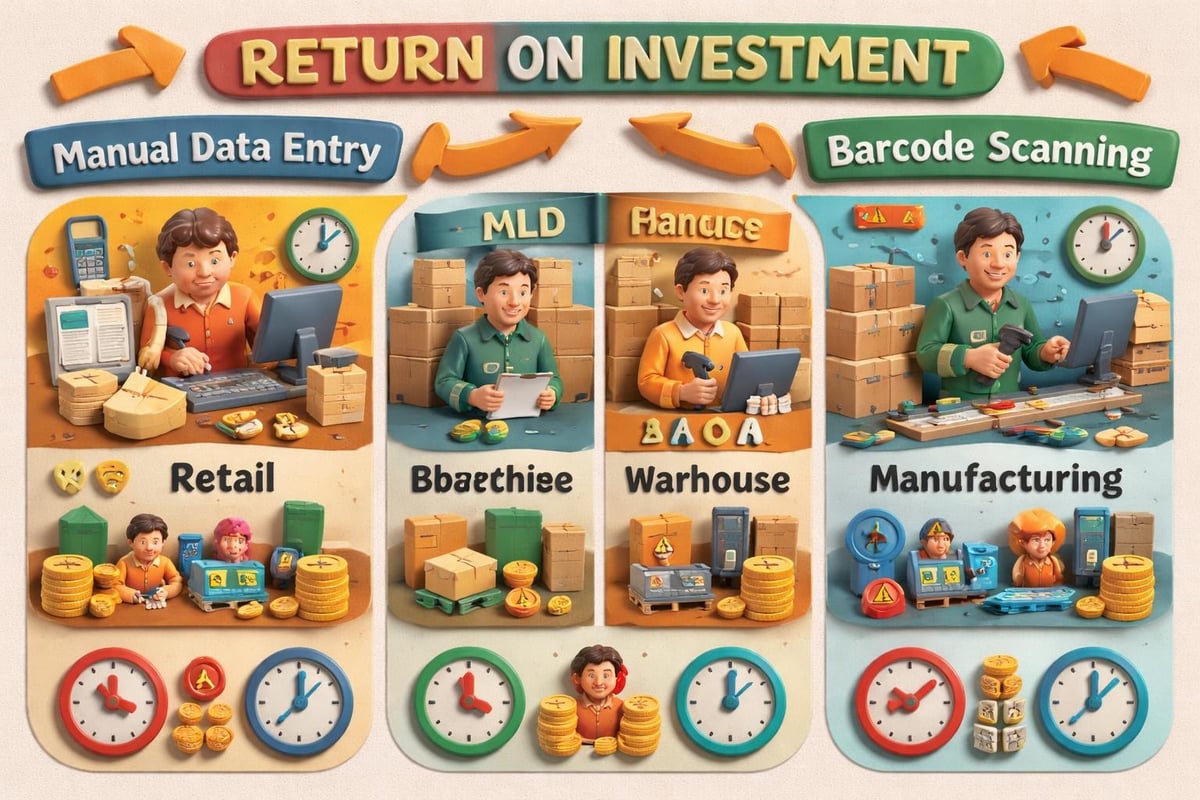
Modern businesses demand accuracy and speed in data collection. Manual data entry creates bottlenecks, introduces human error, and wastes valuable employee time on repetitive tasks.
Barcode scanning eliminates these friction points completely. When you scan a product code, asset tag, or shipping label, the information flows instantly into your database with near-perfect accuracy. This automation matters especially for companies running custom ERP and CRM solutions where data integrity directly impacts everything from inventory forecasts to customer service quality.
Key benefits include:
- Reduced data entry errors by up to 99%
- Faster transaction processing (seconds versus minutes)
- Real-time inventory visibility across locations
- Improved employee productivity and satisfaction
- Enhanced customer experience through faster service
The financial impact extends beyond labor savings. Accurate inventory tracking prevents stockouts, reduces excess inventory carrying costs, and improves cash flow management. For manufacturing operations, barcode scanning ensures proper raw material allocation and finished goods tracking throughout production cycles.
Native FileMaker Go Barcode Scanning Capabilities
FileMaker Go brings built-in barcode scanning functionality to iOS devices without requiring additional plugins or hardware. This native capability makes it incredibly accessible for businesses already using iPads or iPhones in their operations.
Setting Up Native Barcode Scanning
The Insert from Device script step provides the foundation for filemaker barcode scanning on mobile devices. This powerful script command accesses the device camera and automatically recognizes multiple barcode formats.
Configuration requires just a few simple steps:
- Create a text or container field to receive scanned data
- Add an "Insert from Device" script step
- Select "Bar Code" as the source type
- Configure the target field for data placement
- Add conditional logic for post-scan processing
The native scanning engine recognizes standard formats including UPC, EAN, Code 39, Code 128, QR codes, and Data Matrix symbols. For most retail and warehouse applications, these formats cover 95% of common scanning needs.
Optimizing Scanning Performance
Performance varies based on environmental conditions and device capabilities. The official Claris documentation on barcode scanning offers specific guidance for maximizing scan accuracy and speed.
| Factor | Impact | Optimization Strategy |
|---|---|---|
| Lighting | High | Use adequate overhead lighting, avoid glare |
| Distance | Medium | Hold device 4-8 inches from barcode |
| Angle | High | Maintain perpendicular alignment |
| Barcode Quality | Critical | Ensure clean, undamaged labels |
| Device Model | Medium | Newer devices scan faster and more reliably |
Professional implementation often includes user training on proper scanning technique. Employees learn to position the camera correctly, recognize successful scans through visual or audio feedback, and handle exceptions when barcodes won't read.
Advanced Plugin Solutions for Enterprise Scanning
While native FileMaker Go scanning works beautifully for mobile-first workflows, many businesses require more robust capabilities. Plugin solutions extend filemaker barcode scanning functionality across desktop platforms, support additional barcode formats, and enable integration with industrial scanning hardware.
Desktop Barcode Scanning Options
Desktop environments present unique challenges since most computers lack integrated cameras suitable for barcode scanning. Plugin solutions bridge this gap by connecting FileMaker to USB barcode scanners, webcams, or network-attached scanning stations.
Popular plugin approaches include:
- Keyboard wedge scanners: These devices act as keyboard input, requiring minimal configuration but offering limited control
- Plugin-controlled scanners: Direct integration through plugins like MBS FileMaker Plugin provides advanced features and error handling
- Network scanners: Enterprise-grade scanners connect via TCP/IP for centralized scanning stations
- Webcam-based scanning: CNS Barcode plugin enables scanning through standard webcams when dedicated hardware isn't available
Each approach offers different trade-offs between cost, flexibility, and performance. Keyboard wedge scanners cost less but provide no programmatic control. Plugin-integrated solutions cost more but deliver sophisticated error handling, data validation, and workflow automation.
Industrial Barcode Scanner Integration
Manufacturing facilities and large distribution centers often deploy industrial-grade scanners from manufacturers like Zebra, Honeywell, or Datalogic. These ruggedized devices withstand harsh environments while delivering superior scanning performance on damaged or poorly printed barcodes.
Connecting industrial scanners to FileMaker typically requires specialized plugins or middleware. 24U Software’s approach to implementing industrial barcode scanners demonstrates how custom plugins enable reliable communication between FileMaker and enterprise hardware.
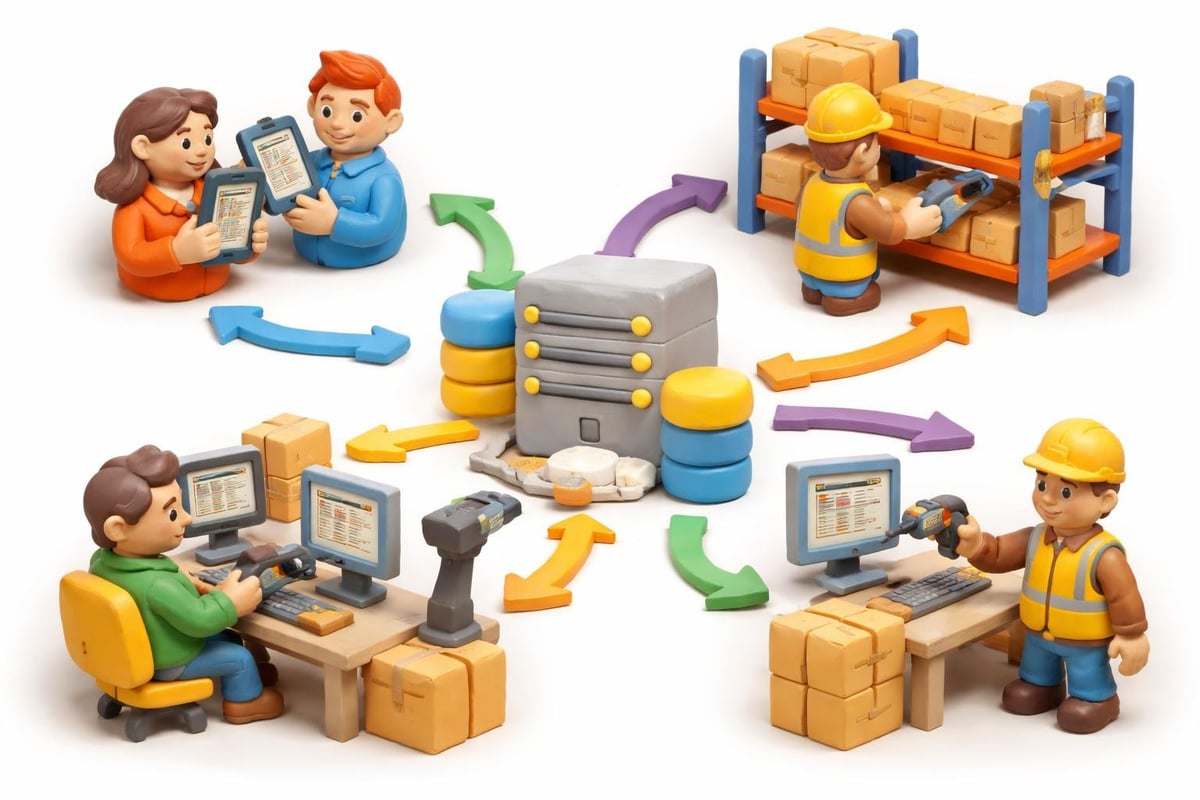
The integration complexity pays dividends in operational environments where scanner reliability directly impacts productivity. Industrial scanners read barcodes from greater distances, handle multiple symbologies simultaneously, and maintain consistent performance across millions of scans.
Barcode Generation Within FileMaker Solutions
Complete barcode workflows require both scanning and generation capabilities. Your FileMaker solution must create barcode labels for new inventory items, replacement tags for damaged goods, and shipping labels for outbound orders.
Plugin-Free Barcode Generation
Several approaches enable barcode creation without installing third-party plugins. Barcode Creator offers a pure FileMaker solution that generates barcodes using calculated fields and custom functions, supporting 19 different symbologies.
This plugin-free approach provides significant advantages:
- No licensing costs for additional software components
- Simplified deployment across multiple FileMaker servers
- Easier maintenance and version upgrades
- Cross-platform compatibility without dependencies
The technical implementation uses Base64 encoding and SVG graphics to render barcodes dynamically. While this requires more initial development effort compared to plugins, the long-term benefits often justify the investment for businesses prioritizing simplicity and control.
Web-Based Barcode Generation Services
Cloud-based generation services offer another plugin-free alternative. IDAutomation’s streaming barcode generator creates barcodes through web requests, returning images that FileMaker displays in container fields.
This approach works particularly well for:
- Generating barcodes for printed reports and labels
- Creating high-resolution barcodes for professional documentation
- Supporting specialized symbologies not available in native solutions
- Scaling barcode generation without impacting server performance
Web services introduce network dependencies but eliminate local processing overhead. For businesses already leveraging cloud infrastructure, this integration pattern aligns naturally with existing architecture.
Building Effective Barcode Workflows in FileMaker
Technical capability means nothing without well-designed workflows that match your actual business processes. Successful filemaker barcode scanning implementations align technology with operational requirements, user capabilities, and exception handling needs.
Inventory Receiving Workflow Example
Consider a typical warehouse receiving process. Shipments arrive with packing slips listing expected items and quantities. Workers must verify contents, update inventory records, and identify discrepancies.
Traditional barcode-enabled workflow:
- Worker scans shipment identifier from packing slip
- FileMaker loads expected items and quantities
- Worker scans each received item barcode
- System matches scanned codes against expected items
- Quantities update automatically as items scan
- Discrepancies trigger exception handling workflow
- Manager reviews and approves receiving report
This workflow reduces receiving time by 60-70% compared to manual verification. Workers focus on physical handling while the system manages data accuracy and completeness validation.
Multi-Location Asset Tracking
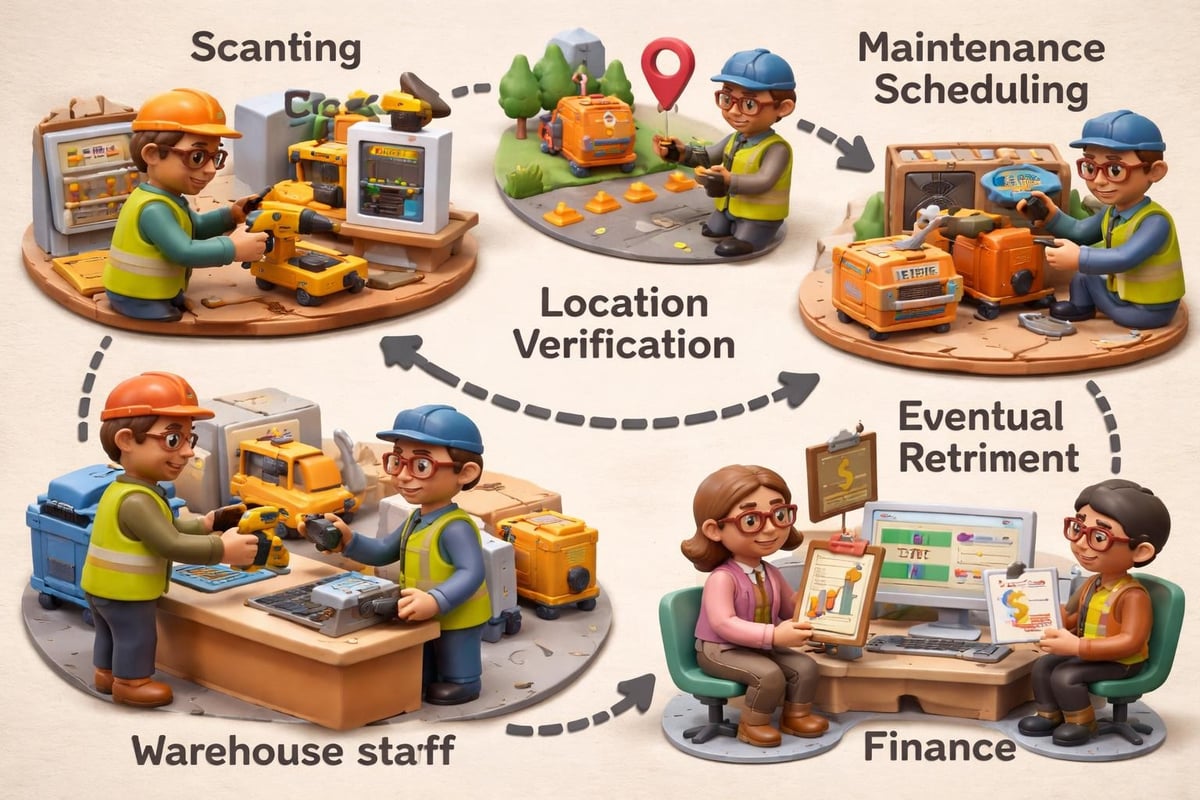
Organizations with equipment distributed across multiple locations face unique tracking challenges. Barcode scanning combined with GPS integration creates powerful asset management capabilities.
| Tracking Requirement | FileMaker Implementation | Barcode Role |
|---|---|---|
| Equipment location | GPS coordinates captured during scan | Links physical asset to geographic data |
| Maintenance history | Service records tied to asset ID | Quick access to complete service records |
| Assignment tracking | Employee/department associations | Accountability and allocation management |
| Depreciation tracking | Acquisition date and cost linked to asset | Automated financial reporting |
The comprehensive barcode scanning tutorial from FileMaker Magazine demonstrates these advanced integration patterns with practical examples.
Technical Considerations for Robust Implementation
Successful filemaker barcode scanning systems require attention to technical details that might seem minor during initial development but become critical in production environments.
Data Validation and Error Handling
Barcodes sometimes scan incorrectly due to damage, lighting issues, or user error. Robust solutions anticipate these scenarios with comprehensive validation logic.
Essential validation checks include:
- Barcode format verification against expected patterns
- Database lookup confirmation to ensure scanned codes exist
- Duplicate scan prevention within configurable time windows
- Quantity limit enforcement to prevent data entry errors
- Conditional field population based on barcode content
Validation failures should trigger clear user feedback rather than silent failures. Visual indicators, audio alerts, and descriptive error messages help workers quickly identify and correct issues without supervisor intervention.
Performance Optimization for High-Volume Scanning
Warehouse environments often require scanning hundreds or thousands of items per hour. FileMaker solutions must handle this volume without introducing delays that frustrate users and slow operations.
Key optimization strategies include:
- Indexed fields: Ensure barcode lookup fields have proper indexing
- Relationship optimization: Minimize calculation dependencies in barcode-triggered relationships
- Script optimization: Use server-side scripts for batch processing operations
- Caching strategies: Pre-load frequently accessed reference data
- Committed record minimization: Batch updates rather than committing after each scan
Performance testing under realistic conditions reveals bottlenecks before deployment. Load testing with actual scanner hardware and representative data volumes prevents unpleasant surprises during go-live periods.
Integration Patterns for Connected Systems
Modern businesses rarely operate isolated systems. Your filemaker barcode scanning solution likely needs to exchange data with accounting platforms, shipping carriers, manufacturing equipment, or e-commerce systems.
API Integration for Real-Time Synchronization
When scanned items trigger updates in external systems, API integration becomes essential. FileMaker's native cURL capabilities combined with JSON parsing enable sophisticated integrations without third-party middleware.
Common integration scenarios include:
- Shipping carrier APIs: Automatically create tracking numbers and labels when scanning outbound shipments
- Accounting system sync: Push inventory adjustments to QuickBooks or Xero after cycle counts
- E-commerce platforms: Update available quantities on Shopify or WooCommerce after warehouse scans
- Manufacturing equipment: Send production instructions to CNC machines or robotic systems based on scanned work orders
The data migration capabilities that support initial system implementation also facilitate ongoing integration maintenance and enhancement.
Hybrid Scanning Environments
Many organizations operate hybrid environments where some users scan on mobile devices while others use desktop scanners. Maintaining consistent user experiences across platforms requires careful interface design and script architecture.
Platform-specific considerations:
| Platform | Scanning Method | Interface Approach | Script Considerations |
|---|---|---|---|
| iOS | Native camera | Touch-optimized buttons | Handle camera permissions |
| Windows | USB scanner | Keyboard shortcuts | Support wedge input mode |
| macOS | Webcam/USB | Mouse/keyboard hybrid | Camera access permissions |
| Web | Limited/none | Manual entry fallback | Progressive enhancement |
Script parameter passing enables shared business logic across platforms while platform-specific scripts handle interface variations. This architecture reduces maintenance burden while optimizing user experience for each context.
Advanced Scanning Techniques and Emerging Technologies
Barcode technology continues evolving with new symbologies, scanning methods, and integration approaches that expand what's possible within FileMaker platforms.
QR Codes and 2D Symbology
Two-dimensional barcodes like QR codes and Data Matrix symbols encode significantly more information than traditional linear barcodes. A single QR code might contain complete product specifications, serial numbers, manufacturing dates, and batch identifiers.
This density enables sophisticated workflows where a single scan provides comprehensive context. Manufacturing quality control processes benefit particularly from 2D codes that encode complete traceability information including raw material sources, production parameters, and inspector identification.
Image Recognition and OCR Integration
The zbar library integration guide demonstrates how open-source tools extend barcode recognition capabilities beyond standard symbologies. Advanced implementations combine barcode scanning with optical character recognition (OCR) to extract printed text from labels and documents.
This hybrid approach handles scenarios where barcodes may be missing, damaged, or supplemented by human-readable information that requires capture. Shipping documents often combine barcodes for primary identification with printed tracking numbers, dates, and quantities that OCR can extract automatically.
Multi-Barcode Scanning and Batch Processing
Modern scanning hardware can read multiple barcodes simultaneously from a single image or scan event. This capability dramatically accelerates processes like receiving shipments containing dozens of items or conducting cycle counts across storage locations.
FileMaker workflows leverage multi-barcode scanning through:
- Array processing of scanned code collections
- Parallel database lookups for multiple items
- Batch validation across entire scan sets
- Aggregated reporting for multi-item transactions
The performance benefits compound in high-volume environments where reducing scan events by 80% directly translates to proportional time savings and productivity gains.
Security and Compliance Considerations
Industries like healthcare, food service, and regulated manufacturing face strict requirements around tracking, authentication, and audit trails. Filemaker barcode scanning implementations in these sectors must address compliance requirements without sacrificing usability.
Audit Trail Requirements
Comprehensive audit logging captures who scanned what, when, where, and under what circumstances. This granular tracking supports regulatory compliance, quality investigations, and process improvement analysis.
Critical audit data points include:
- User identification (account name, badge ID)
- Timestamp with millisecond precision
- Geographic location (GPS coordinates or facility identifier)
- Scanned barcode value and format
- Associated transaction details
- Device identifier and platform
- Validation results and any exception handling
FileMaker's native logging capabilities combined with custom audit tables provide the foundation for compliance-grade tracking. Automated reporting extracts audit data for regulatory submissions or internal quality reviews.
Access Control and Authentication
Barcode scanning often occurs in environments where multiple workers share devices. User authentication ensures accountability while preventing unauthorized access to sensitive functions or data.
Badge scanning provides an elegant authentication method that requires no password entry. Workers scan their employee badges to log in, then scan inventory or asset barcodes to perform transactions. This dual-barcode approach maintains security without introducing friction that slows operations.
FileMaker barcode scanning capabilities transform manual data collection into streamlined digital workflows that improve accuracy, speed, and visibility across your operations. From native mobile scanning to sophisticated plugin integrations and industrial hardware connections, the platform offers flexible approaches that match diverse business requirements. Whether you're managing retail inventory, manufacturing assets, or warehouse operations, barcode integration delivers measurable returns through reduced errors, faster processing, and better decision-making data. Lolli Group specializes in designing and implementing custom FileMaker solutions that leverage barcode scanning, API integrations, and artificial intelligence to give your business complete control over critical processes while maintaining the flexibility to adapt as your needs evolve.